Recent Posts

Social Networks in Plain English

Just published by Lee LeFever on the CommonCraft site is a new “paper works” video on Web 2.0. This time its social networking: which apparently is all about finding a life partner or finding a job. Since, in my case, I’m happy with both, I fear that social networking has little to offer. Still, enjoy the video.

Comments:

AJCann -

Yeh, English is a bitch, ain't it? (Just noticed I made exactly thre same known error in an email I sent).


Next Big Language (NBL)

Following a link in Stefan Tilkov’s blog to another blog entry by John Lam which claims that Rails has been ported to JavaScript by Steve Yegge of Google, I came across this intriguing article by Mr Yegge published back in February. He gives a lot of hints but doesn’t actually name the NBL: but from the speculation in the comments and now this announcement, it looks like it might have been JavaScript!

Followup

InfoQ has published an article on the blogosphere’s buzz around Steve Yegge‘s presentation of the JavaScript (Rhino) port of rails at FooCamp. The article quotes heavily from Steve’s own posted response to all of the interest. But I find Steve’s work interesting mainly because it reveals the unexpected power of the Rhino JavaScript interpreter which of course is built in to Java SE 6 and runs on the JVM on the server.

A Day in the (2.0) life (Part 4)

### Serendipity: or the fundamental interconnectedness of all things

> [The World Wide Web is] the only thing I know of whose shortened form — www — takes three times longer to say than what it’s short for. – Douglas Adams

When reading my river of news, I often come across interesting cross-links and related ideas. (I guess because I am reading lots of sources there are *bound *to be some that are related.) Nevertheless, I am often struck by how mysteriously serendipitous these discovered links often are! Take for example my experience today. Early in my feed reading I came across this blog entry in the Learning lab about how *not *to make PowerPoint presentations. Later on, I found Tony Hirst’s article about Digital Media which included that video, as well as this example of a good PowerPoint presentation that I’d seen and bookmarked some time ago, and much else beside. As Dirk Gently would probably say “be open to the *fundadamental interconnectedness of all things*.”

Powered by ScribeFire.

Web 2.0 for Education

A couple of interesting articles were posted on Read/WriteWeb on Friday. In the first, Richard MacManus discusses the support platforms (including Elgg which we use at my institution). In the second Josh Catone discusses the range of Web2.0 tools that are available to students as a sort of portable, always connected “backpack”. Although the first article provides a useful overview of some of the key ideas and platforms being used in “e-learning 2.0″, in many ways the second is more interesting; it provides links to web2.0 applications that may be useful to colleagues at the chalk face as well as students. In an impressive survey, Josh covers office replacements, note taking, mind mapping, bookmarking, collaboration, calendars, calculators, and bibliography tools. All free, and all on the web. I’ll be checking out some of these for sure.

Powered by ScribeFire.

Teacher's tip #1: tag your bookmarks with a module code

If you want to share URLs with your students, tag your del.icio.us bookmarks with a module code. If you publish the link to the tag, your students will get up-to-date access to your links and it’s easy for you to add more. I find it much more more flexible and convenient than the External links feature in Blackboard! You can even create an RSS feed for your links!

Here’s one I made earlier: del.icio.us/cpjobling/eg-146.

Comments:

Owain Harries -

Hello! http://owfx999.blogspot.com/


Chris Jobling -

Hello Owain.


Adel -

Hello http://adel-uniquead.blogspot.com/ I am Adel Alfadhil .My student number is 466770 .


Chris Jobling -

Hallo Adel


adel -

http://adel-uniquead.blogspot.com/ I am Adel Alfadhil .My student number is 466770 .


Chris Jobling -

I have already said hello!


Talal -

http://496057.blogspot.com/


Chris Jobling -

Hello Talal!


Samantha -

here's my blog line http://SamanthaJayne.blogspot.com/


blauz -

Selcuk Gorgulu Blogger URL : http://blauz.blogspot.com/ Custom blog, Wordpress URL : http://blauz.com/blog


Chris Jobling -

Thanks for the link!


Chris Jobling -

Hello sam! Nice blog!


Darryl Lacey -

Hello


Steve -

http://spopple.blogspot.com/


Chris Jobling -

Hi Darryl, Can you give a link to your blog?


Chris Jobling -

Hi Steve!


Darryl Lacey -

hello http://darryllacey.blogspot.com/


bhagya -

Hi everybody This is my blog


bhagya -

Hi Everybody This is my blog


A Day in the (2.0) life (Part 3)

In my previous article in this series, I described how I use the All Items mode in Google Reader to efficiently wade through a large number of articles from my subscribed-to RSS feeds. In this article I show you how I mark, bookmark and occasionally blog about interesting items that I find in my daily news. The underlying justification for this process is an attempt to supplement my memory with minimum effort! Enjoy, and don’t forget to leave a comment!

Remembering Interesting Things

It’s extraordinary how little we do remember. It’s almost as if Memory is not considered useful by nature. – Doris Lessing

The web2.0 method of coping with information overload is to use tagging and folksonomy to aid in the categorisation and recall of information. However, these methods are equally applicable to personal information management. I find that I have developed a three-stage approach to managing my RSS feeds. Firstly, I supplement my short-term memory by marking interesting items using a method that makes it nearly effortless to commit such items to memory. Secondly, I use my del.icio.us bookmarking site as a long-term memory where I can tag items that I want to be able to recall again. Finally, if the item is worthy of more reasoned commentary, I’ll blog about it. All forms of memory, because they rely on web2.0 technology, provide RSS feeds that make it easy to share my memories with you dear reader.

The rest of this article describes this process in more detail.

Short-term memory support

Starred items

The easiest and quicker way to tag an article as worth remembering in Google Reader is simply to mark it with a star. Starred items provide a sort of short-term memory for me as it requires virtually no effort on my part, and can be done during the act of reading. The primary advantage of supplanting my short term memory with a Google Reader starred item is that of course, like women and elephants, Google never forgets! Thus I can easily go back to my starred items from the navigation panel and read them all again. Ω

To star an item, you simply click in the star icon. Alternatively, if you prefer to avoid the mouse, typing s will toggle the star. And that’s it: remembered!

Starred items

Memory recall: bookmarking and tagging

Long term memory requires a bit more effort. Although Google Reader has a built-in tagging facility, I haven’t used it because I prefer to use del.icio.us the social bookmarking site for this purpose. (I have the del.icio.us tagging extension installed and have replaced by browser’s bookmarks with the del.icio.us replacement. See a previous blog article for links.)

Typically, if I find an article that I think deserves tagging, I’ll open it in a new browser tab. article link
You do this in Reader by clicking on the article’s headline (which is a link to the real article’s permalink) or typing v for view.

Original article

To tag and bookmark this article for easier recall, I will often select a key sentence in the article then press the Tag button in my browser.

Tagging In the pop-up Add Bookmark window, the selected text will appear in the Notes field. I have edited it here to change it from first person to third person and add a little more information. I also add some tags. Then I save the bookmark.

Bookmarking and tagging

The article itself may itself contain useful links, so I’ll often follow these and add additional bookmarks and tags.

Recall

To find an article later, you simply go to your bookmark collection and search for the tags. In Firefox, I can do this directly in the del.icio.us replacement for the built-in bookmarks.

A major benefit of del.icio.us tags is of course social bookmarking. Bookmarks are tagged by other people, and by following their tags you can find related articles. This works best from your del.icio.us homepage.

Social bookmarking

John Udell published a nice screen-cast on this some time ago. I looked up the link in my bookmarks collection which you can find on-line at del.icio.us/cpjobling.

Editorial in the Blog

Blogging is hard! Finding an article that is worth some serious comentary is relatively rare, and when you do find one, it’ll take some time to compose, proof read and publish. I find that starring items and bookmarking a subset of these is sufficient to commit most of what I read to memory. And I automatically get the equivalent to the link blogs that some people produce, by performing the actions that I’ve described in this article. Why I decide to write a blog article and the tools that I use to do so will have to wait for another article.

Sharing your memories

I think it’s worth concluding with a few thoughts about how I share the articles that I’ve marked interesting, bookmarked or tagged.

Tickling

An advantage of Google Reader is that it provides an RSS feed for starred items and I use this to embed my starred items in the side panel of this blog (See What’s tickling my fancy on the right of this article). This is a really easy way to provide the equivalent of a Link Blog and share interesting things with my readers without any editorial.

An alternative way to mark items for sharing is to use the share icon which appears at the bottom of the article view.

Sharing

But I find this less convenient because you have to scroll to the end of the article to find it. The star is at both the top and bottom of each article, so there’s no need to scroll if you can make a decision on the first screenful of the article.

I guess that share is intended to be used for the public sharing of interesting articles, whereas the star is meant to be private. However, as you can easily make starred items publicly visible, I find this distinction bogus.

The del.icio.us bookmarking system provides many ways to share your bookmarks. You can publish the link to your public account, or just to some of your tags, or to everybody’s tags. And you can publish an RSS feed from all of these as well. You can also get del.icio.us to generate the HTML and JavaScript code that creates a dynamic tag cloud for your links. Here’s mine:http://del.icio.us/feeds/js/tags/cpjobling?icon;count=149;size=12-35;color=87ceeb-0000ff;title=my%20del.icio.us%20tags;name;showadd
A Day in the (2.0) life (Part 2)

This is Part 2 in a planned series of essays on living life online. Part 1 is here. The whole series is tagged mylifeonline for ease of access.

Reading the News

I read the news today, oh boy – John Lennon

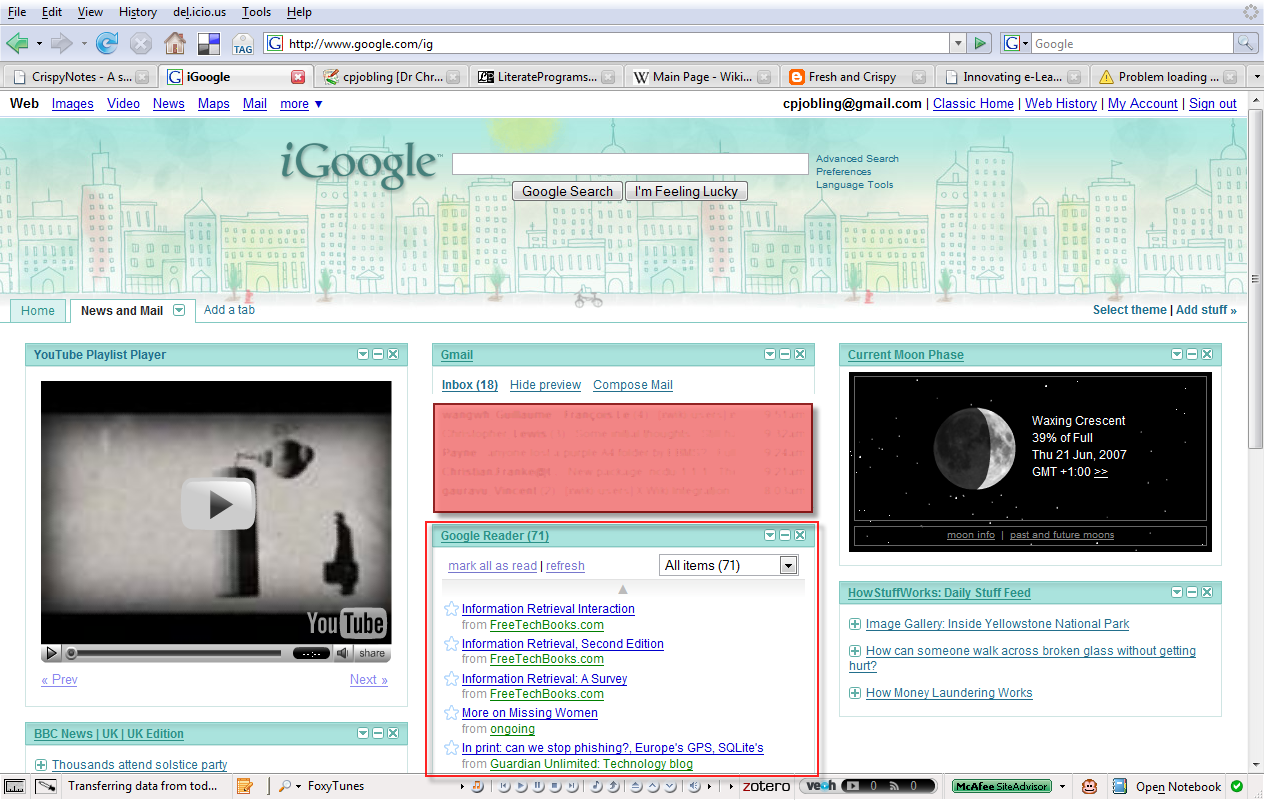
In the previous article I showed you my Firefox start up page. In this article I’m going to drill down into my iGoogle portal concentrating on a typical news reading session. I will be showing you how I use my RSS feed aggregator to efficiently find out what’s new across a large number of subscribed-to blogs and other RSS feeds.

This picture shows my iGoogle news page in Firefox (click the image to enlarge to full size). I’ve highlighted the Google reader panel. You can see that today I have 72 new articles to read. I can read articles within the iGoogle window, but it’s usually more efficient to go to the Google reader web application which has more reading options. So I click on the Google Reader link to open the Google RSS Feed Reader.

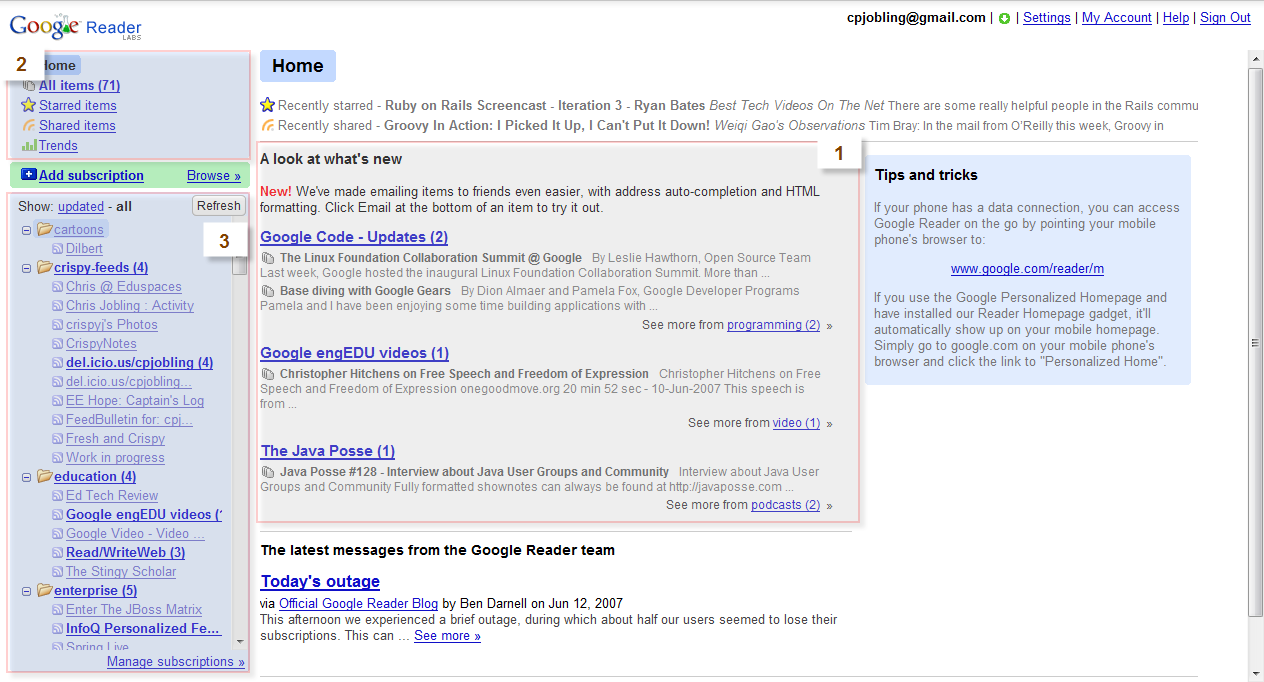
The Google Reader web home page has three main areas. The main area(1) gives a selection of the unread items which is based on what Google Reader thinks are the topics that I’ll be most interested in. On the top left is a navigation panel (2) which gives me quick access to the home page, all news and items that I’ve chosen to mark as important (starred) or those which I’d like to share.

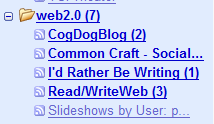
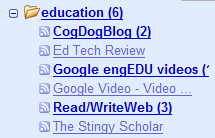
The third area (3) gives the traditional folder view of the RSS feeds that you’ll find in most RSS feed aggregators. Google Reader differs here in that folders represent tags and so you can conveniently place a single RSS feed in more than one folder. For example I have Alan Levine’s CogDogBlog categorized under people, education, teaching and web2.0 and I can access the feed from any of these top-level folders.

Tag folder view

Tag folder view 2

Also, when I read it in web2.0, it becomes marked as read in all the other folders too.

How you use Google Reader to read your RSS feeds is a matter of taste. For example, you can read the news from the home page in which case, Google essentially decides which news items to show you. An alternative is to use the tagged folders to browse the news and home in on the topics of particular interest. For example, I often home into the daily Dilbert cartoon by going directly to the cartoons folder. However, for efficiency, I find it best to go directly to the All items link.

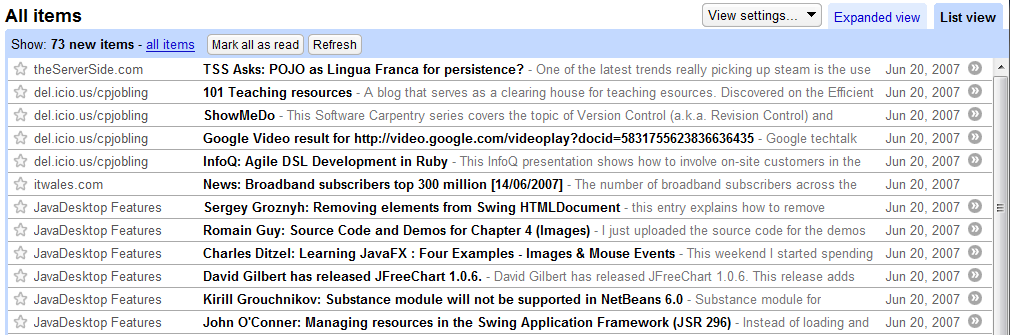
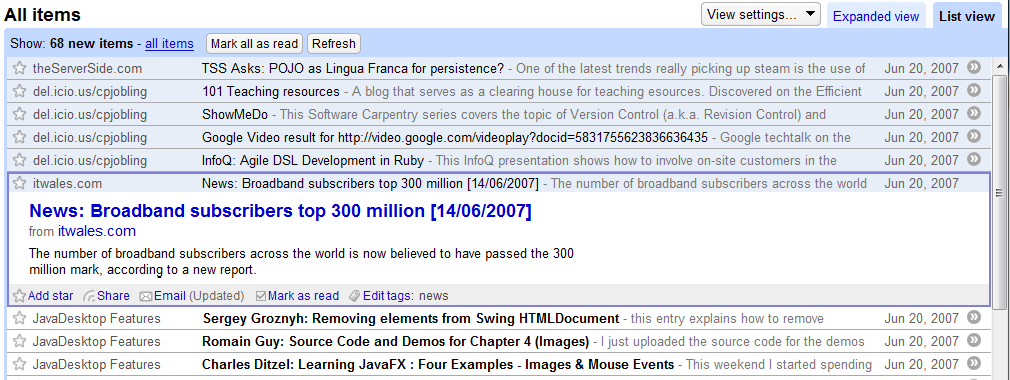
The All Items view gives a so called river of news view of all of my unread subscribed RSS feeds (here) arranged in chronological order (oldest first). In this view, you simply click on the first item and then use the space bar to move through item by item. As you do so, the items become marked as read. In this way you can efficiently catch up on a large number of RSS feeds without the need to use a mouse!

So far as I know, only Google Reader provides this time-saving feature, and hence it’s become my feed reader of choice.

This concludes Part 2! In the next article, I’ll show you how I try to be efficient in tagging items of interest.

Firefox addins

Richard McManus of the Read/WriteWeb blog has published an article on Firefox browser add-ins which includes the top ten list, links to reviews of the “officially” recommended add-ins and some discussion of what will be coming in Firefox 3. Comments give lists and links to other add-ins.

My personal list of addons that I use every day: - ScribeFire addin for blogging. - The del.icio.us addin for tagging web pages. - The del.icio.us Bookmarks replaces Firefox bookmarks with del.icio.us bookmarks. - Google notebook addin. - Delegate To Todoist – moves tasks from gmail to on-line to-do list.

Web development tools: - FireBug XHTML/CSS/Javascript/HTTP browser debugger. - The WebDeveloper addin. - IEView “View this page in IE” - ColorZilla – eye-drop tool to measure colours (returns CSS colour values) - MeasureIt – on-screen pixel ruler for measuring element sizes. - Validaty – validates current web page - View Source with external editor.

Addins that are installed but net yet used in anger: - Clipmarks - Zotero – bibliographic data manager - Greasemonkey JavaScript engine for controlling the browser.

Powered by ScribeFire.